
Deployment overview
Your scanner. Your cloud.
Your administrator deploys it. The scanner uses its own approved identity.
Your team approves the resources, permissions and cloud costs.
Azure overview
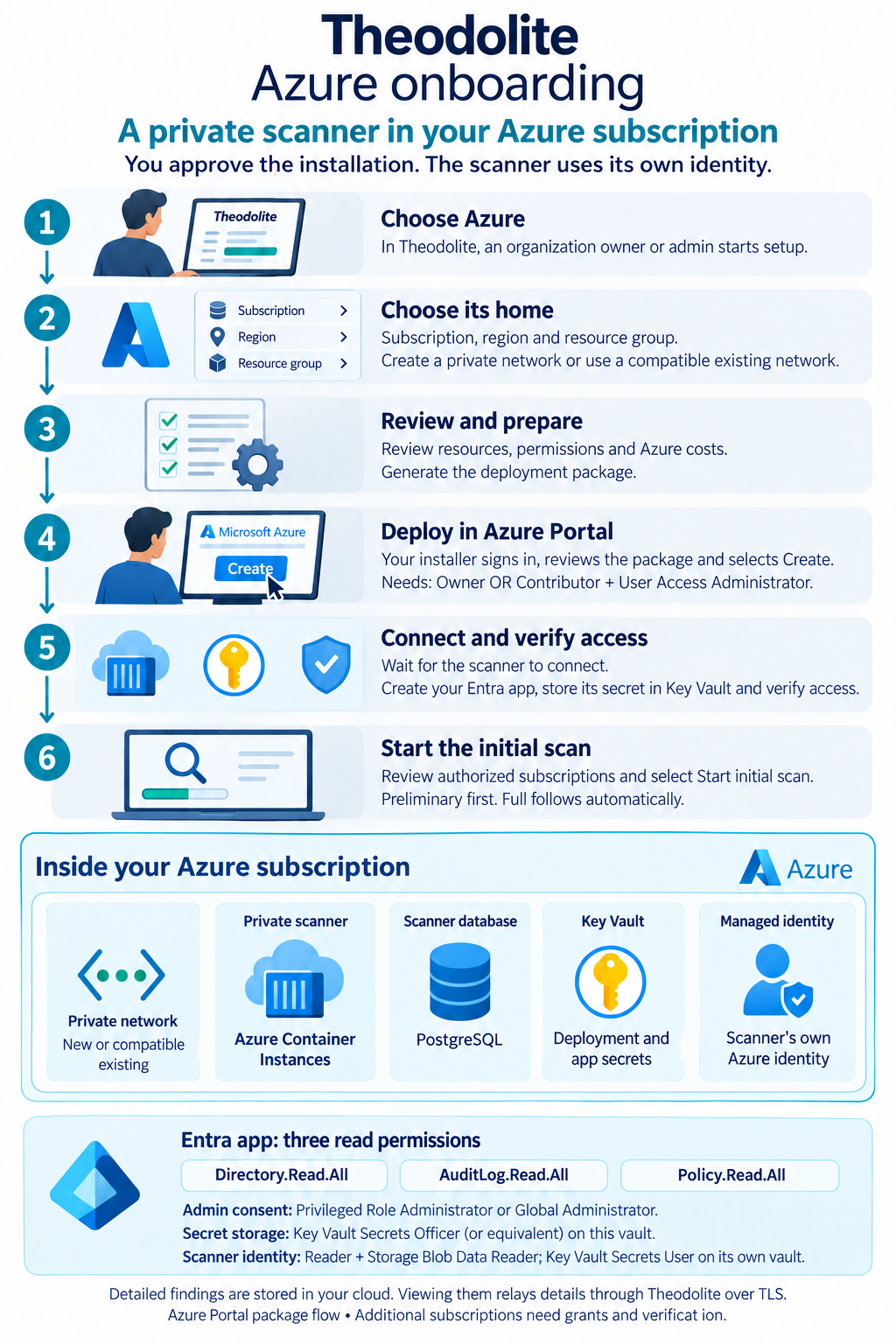
How Azure deployment works.
Follow the journey from setup in Theodolite to deployment in your cloud and your first scan.
In Theodolite
Choose Azure.
An organization owner or admin starts setup in Theodolite.
In Theodolite
Choose its home.
Choose the subscription, region, resource group and a new or compatible existing private network.
In Theodolite
Review the package.
Approve the resources, permissions and cloud costs, then generate the deployment package.
In Azure Portal
Deploy in Azure.
Your administrator signs in to Azure, reviews the package and creates the resources.
In Azure + Theodolite
Verify access.
Create the required Entra app, store its secret in your Key Vault, then verify access in Theodolite.
In Theodolite
Start the initial scan.
Review authorized subscriptions and select Start initial scan. Preliminary runs first; Full follows automatically.
Keep the guide
The complete Azure overview.
The diagram, cloud resources and access requirements in one place.
What does our administrator need?
- Azure deployment access. Owner, or Contributor plus User Access Administrator, at the required subscription scope. Joining an existing network also requires access to those network resources.
- A place to run it. Your subscription, region and scanner resource group, with a new private network or compatible existing delegated subnets, NAT and private DNS.
- Entra app and admin consent. Someone who can create app registrations, and a Privileged Role Administrator or Global Administrator to approve the required Graph application permissions.
- Secret-storage access. Key Vault Secrets Officer, or equivalent, on the scanner's vault to store the app credential. Remove this temporary writer access afterward according to your policy.
Which permissions stay after installation?
The deployment creates a managed identity for the scanner and assigns Reader and Storage Blob Data Reader on the authorized subscription, plus Key Vault Secrets User on its own vault.
Your separate Entra app has Directory.Read.All, AuditLog.Read.All and Policy.Read.All. Its credential stays in your Key Vault.
The scanner does not retain the installer's administrator access. Additional subscriptions need their own grants and verification.
What gets created in our Azure subscription?
The Azure deployment creates the private scanner in Azure Container Instances, a PostgreSQL database, Key Vault, managed identity and required role assignments in your scanner resource group.
Choose a new private network or compatible existing network resources. The existing-network option reuses your VNet, delegated subnets, NAT and private DNS, and adds the scanner and database to that network.
This overview shows the Azure Portal package method. If your organization is offered the guided Microsoft sign-in method, follow its installation guide.
Where do findings stay when we use the app?
Detailed findings stay in your scanner's PostgreSQL database. When you view them in the Theodolite application, requested details pass through Theodolite in memory over TLS.
Theodolite retains operational records and permitted result totals. Explore data custody and access
AWS overview
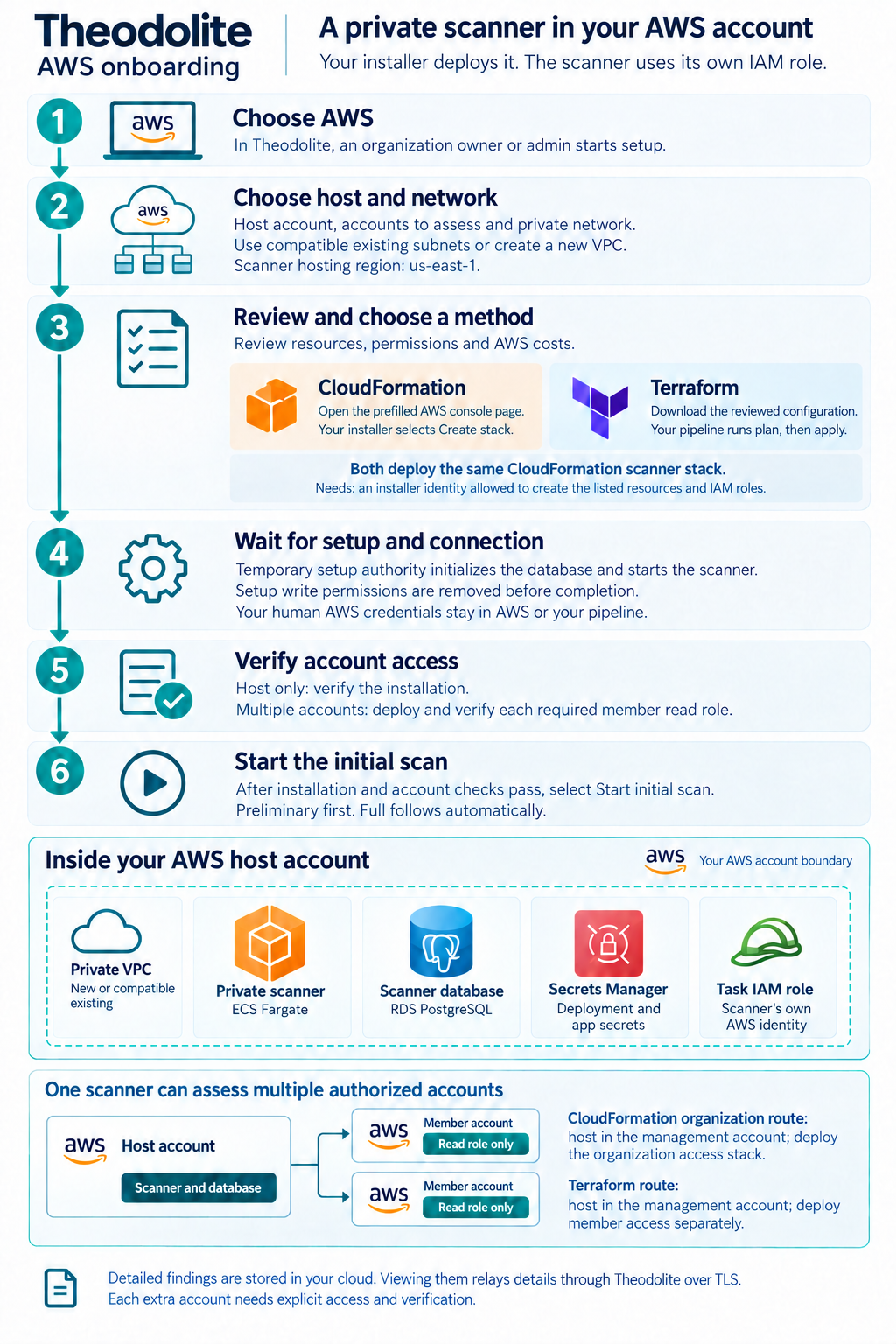
How AWS deployment works.
Choose CloudFormation in your AWS console or Terraform in your pipeline. Both deploy the same scanner stack.
In Theodolite
Choose AWS.
An organization owner or admin starts setup in Theodolite.
In Theodolite
Choose host and network.
Enter your AWS Organizations management account ID and choose a new or compatible existing private network in us-east-1.
Theodolite → AWS or pipeline
Review and deploy.
Review resources, permissions and cloud costs. Deploy through the prefilled CloudFormation page, or plan and apply the downloaded Terraform configuration.
In AWS + Theodolite
Wait for connection.
Setup initializes the database and starts the scanner. Setup write permissions are removed before completion.
In AWS + Theodolite
Verify account access.
Check the host installation. Deploy and verify access for every additional selected account.
In Theodolite
Start the initial scan.
Once installation and account checks pass, select Start initial scan. Preliminary runs first; Full follows automatically.
Keep the guide
The complete AWS overview.
The diagram, cloud resources and access requirements in one place.
Planning to use Terraform? Arrange a deployment review with us to confirm your pipeline, host and account-access plan.
What does our administrator need?
- A deployment identity. Access to create the reviewed CloudFormation stack and its resources, including IAM roles, ECS, RDS, Lambda, Secrets Manager and networking where needed.
- A host account and private network. The scanner runs in
us-east-1. Use two compatible private subnets in different Availability Zones with working outbound access and DNS, or create a new private VPC. - Your deployment method. CloudFormation uses your existing AWS console sign-in. Terraform uses your team's own credentials and protected state backend. Both deploy the same CloudFormation scanner stack.
- Access for extra accounts. Both fresh installation methods host the scanner in your AWS Organizations management account. Member access requires Organizations and StackSets trusted access, followed by verification for each selected account.
Which permissions stay after installation?
The stack creates temporary roles for one-time database setup and scanner startup. Setup write permissions are removed before completion. Role objects and some setup records remain; remaining temporary authority ends at the fixed setup cutoff.
The scanner's task role reads approved AWS sources. Its separate execution role starts the container, retrieves startup secrets and writes logs. Selected member accounts get their own verified access roles.
Your human AWS credentials stay in AWS or your pipeline. Your account selection does not grant access by itself.
What gets created in our AWS account?
The stack creates the private scanner in ECS Fargate, an RDS PostgreSQL database, Secrets Manager secrets, CloudWatch logs, installation resources and the required IAM roles and permissions boundaries.
Choose a new private VPC or compatible existing private subnets. With an existing network, the stack adds its own security groups and network interfaces without creating or changing your VPC, gateways or routes.
Where do findings stay when we use the app?
Detailed findings stay in your scanner's PostgreSQL database. When you view them in the Theodolite application, requested details pass through Theodolite in memory over TLS.
Theodolite retains operational records and permitted result totals. Explore data custody and access
Your account deploys it.
Your administrator uses existing cloud access to approve and deploy the resources.
Its own identity runs it.
The scanner uses its approved identity to access the sources you authorize.
Detailed findings stay in your cloud.
Stored in your scanner's database. Viewed through Theodolite over TLS.
Plan your deployment with us.
Bring your cloud administrator. We'll walk through your environment and access requirements.